Automated Dependency Updates with Renovate on Self-Hosted GitLab
Renovate is an open-source tool that automates dependency updates. It scans your repositories and opens merge requests that bump dependencies and lock files, so developers review and merge an update like any other change.
This post covers why I find it valuable from a DevSecOps point of view, then how I run it on a self-hosted GitLab instance.
Why Renovate is beneficial to DevSecOps
I don't see it as a security tool per se, but it really helps with the DevSecOps model:
- Renovate suggests updates through the tools developers already use. Nobody has to change their habits to apply package updates: it is just another merge request.
- The security team gets visibility on outdated packages: list the merge requests opened by Renovate and you know what is lagging behind.
- No more spreadsheet of packages to update, followed by endless follow-ups with developers to get the patch applied.
- Renovate shifts the responsibility from the security team to the repository maintainers. If a Renovate merge request is left unmerged, the security team is not to blame.
Everyone is happy!
How it works
Renovate is not something you install inside GitLab: it is a CLI that runs as a scheduled CI job.
- A dedicated project,
security/renovate-config, holds the Renovate configuration and its.gitlab-ci.yml. - A pipeline schedule runs that job at regular intervals.
- The job authenticates as a service account, discovers every repository that account can access, and opens merge requests for outdated dependencies.
Prerequisites
- A self-hosted GitLab instance and an administrator account.
- A GitLab Runner registered on the instance, able to run Docker images. Setting one up is out of the scope of this post.
Step 1 – Create a service account for Renovate
Renovate needs to read the code of your repositories, then push a branch and open a merge request with the updated version of each package. Give it its own identity rather than a personal token.
1. Enter Admin mode, go to Settings › Service accounts and create a new service account for the bot.
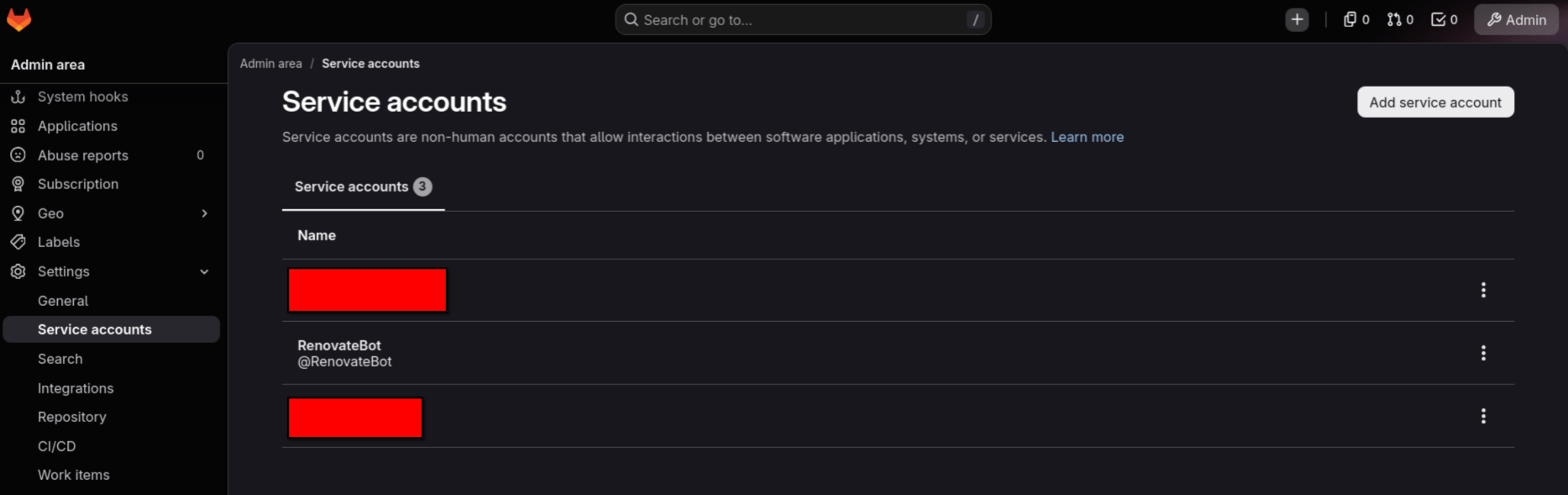
2. Click the ⋮ menu next to the account, then Manage access tokens.
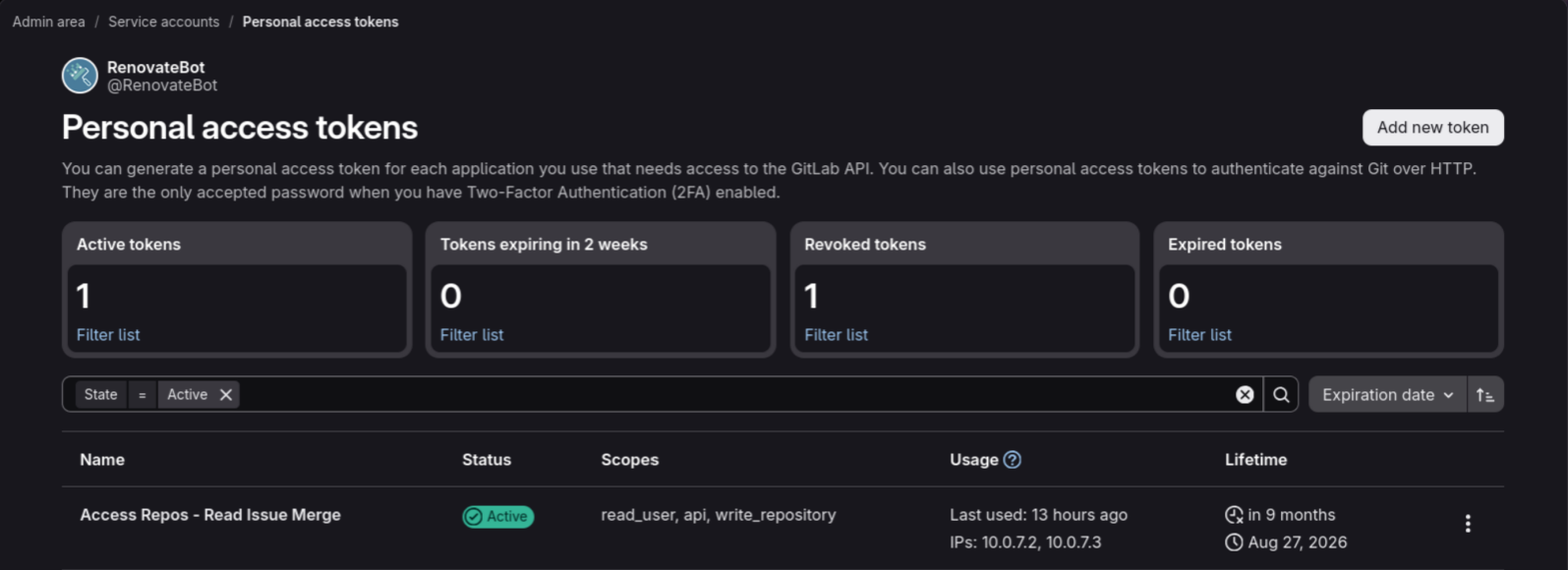
3. Create an access token with the api, read_user and write_repository scopes, and copy it: you will need it in step 2.
4. Add the service account as a member of every project, group or subgroup Renovate should scan, with at least the Developer role — the minimum that lets it push branches and open merge requests.
Step 2 – Create the Renovate configuration project
Create a project to hold the Renovate configuration and the CI job that runs the bot. Mine is security/renovate-config:
security/renovate-config
├── .gitlab-ci.yml
├── config.js
└── renovate.json
Store the token
In that project, go to Settings › CI/CD › Variables and add the token created in step 1 as a variable named RENOVATE_TOKEN, with Masked and Protected enabled. Renovate reads it from the environment, so it never appears in the repository. Protected variables are only exposed to pipelines running on protected branches — which main is by default.

The CI job
renovate:
  image:
    name: renovate/renovate:44.79.6@sha256:68881493de47bcc2f8c3fee39138118f0c6ea353065f94c0fce4a8eaffe97a32
    entrypoint: [""]
  script:
    - renovate
  variables:
    RENOVATE_CONFIG_FILE: "$CI_PROJECT_DIR/config.js"
    LOG_LEVEL: "info"
    # RENOVATE_TOKEN is set in Project Settings > CI/CD > Variables (Masked & Protected)
  rules:
    # Allows running manually from the GitLab UI on the main branch
    - if: '$CI_PIPELINE_SOURCE == "web" && $CI_COMMIT_BRANCH == "main"'
    # Allows execution via GitLab Pipeline Schedules
    - if: '$CI_PIPELINE_SOURCE == "schedule"'
.gitlab-ci.yml
The job uses the official Renovate image, pinned by version and digest. The rules restrict it to two triggers: a manual run from the GitLab UI on main, and a pipeline schedule. Pushing to the project never starts it.
The global configuration
module.exports = {
  platform: 'gitlab',
  endpoint: 'https://example.fr/api/v4/',
  gitAuthor: 'RenovateBot <[email protected]>',
  username: 'RenovateBot',

  // Global settings applied to ALL repositories
  autodiscover: true,
  // autodiscoverFilter: "Infrastructure/*", // Commented = discover everything.

  // Global overrides to disable rate limiting
  // prConcurrentLimit: 0, // defaults to 10
  // branchConcurrentLimit: 0,
  prHourlyLimit: 0,

  // No onboarding MR is created, and any config file present in a repo is ignored.
  onboarding: false,
  requireConfig: 'ignored',

  persistRepoData: true,

  // Base labels applied to EVERY merge request, across ALL repos
  labels: ['renovate'],

  baseBranchPatterns: ["main", "master"],
  packageRules: [
    {
      description: "Pin digests for Docker container images",
      matchDatasources: ["docker"],
      pinDigests: true
    },
    {
      description: "Pin digests for NPM packages",
      matchDatasources: ["npm"],
      pinDigests: true
    }
  ]
};
config.js
The options worth explaining:
autodiscover: trueprocesses every repository the service account can access. UncommentautodiscoverFilterto limit it to a group.onboarding: falseandrequireConfig: 'ignored'skip the onboarding merge request and ignore any Renovate config file found in a repository. Developers cannot change the bot's behaviour from their own repository: the configuration lives in one place.prHourlyLimit: 0removes the hourly limit on new merge requests.labels: ['renovate']tags every merge request, which is what makes the "list Renovate merge requests" view for the security team so easy.baseBranchPatternssets the branches Renovate targets.packageRulespins Docker images and npm packages to digests.
The repository preset
{
  "$schema": "https://docs.renovatebot.com/renovate-schema.json",
  "extends": [
    "config:recommended"
  ]
}
renovate.json
renovate.json extends Renovate's recommended preset, config:recommended.
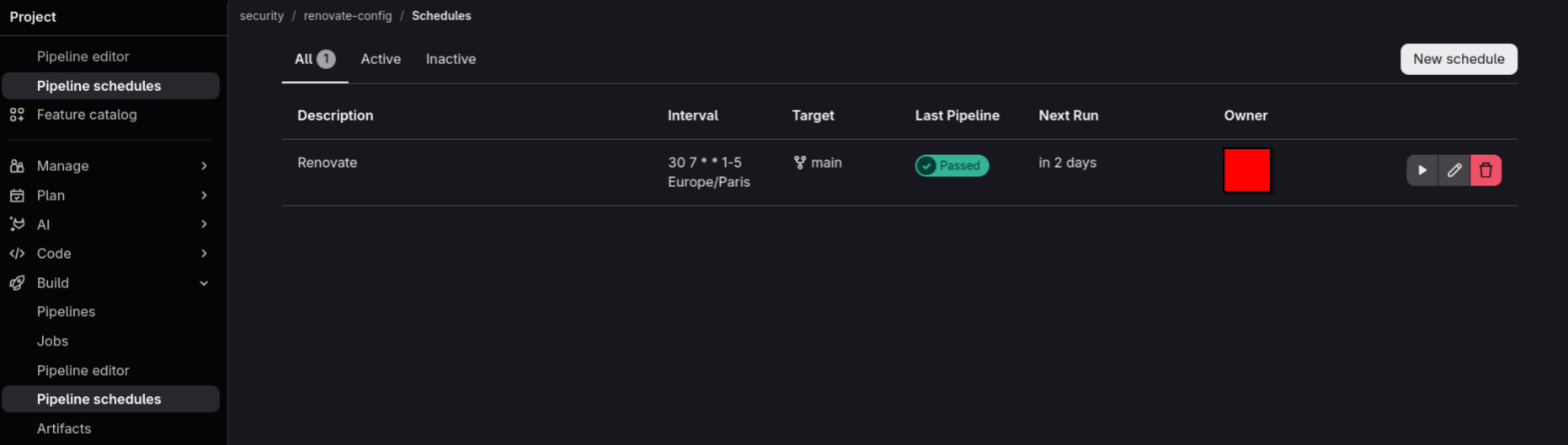
Step 3 – Schedule the pipeline
The CI rules only allow manual and scheduled runs, so the last step is the schedule. In the configuration project, open Build › Pipeline schedules, click New schedule and fill in:
- Description:
Renovate - Interval pattern:
30 7 * * 1-5— 07:30 from Monday to Friday — with the Europe/Paris time zone - Target branch:
main
Use the ▶ button to trigger a first run right away and test it.
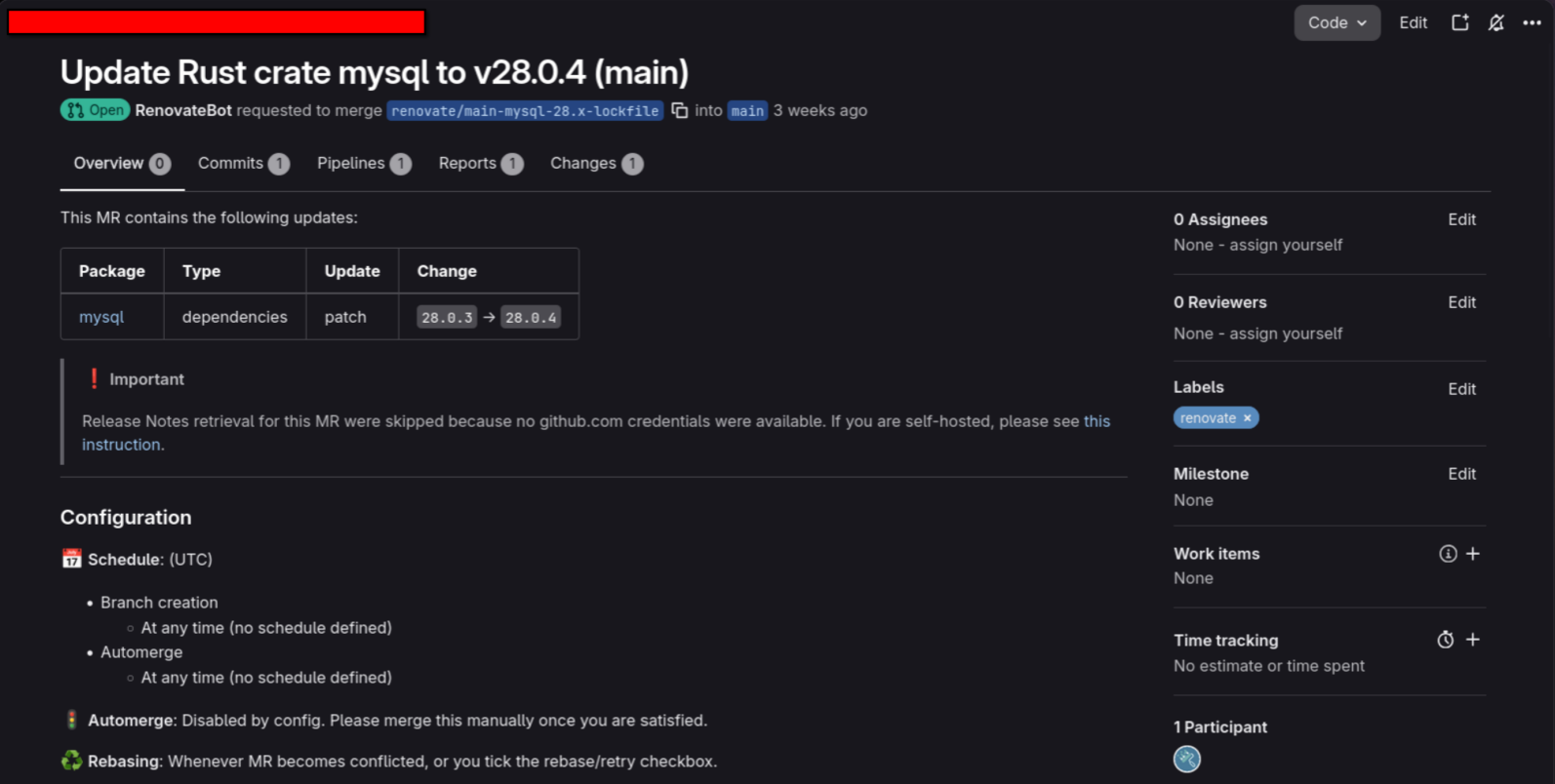
Result
Once the pipeline has run, merge requests labelled renovate show up in your repositories:
Going further
Add a GitHub token for release notes
Most dependencies are published on GitHub. Without a token, Renovate's requests to github.com are anonymous and quickly rate-limited, and its merge requests may come without changelogs or release notes. Create a GitHub personal access token — read-only access to public repositories is enough — and add it to the configuration project as a masked CI/CD variable named GITHUB_COM_TOKEN. Renovate picks it up automatically and the merge requests then include the release notes of each update.
Other ideas
These are additionnal ideas and configuration option which might not be for everyone or not applicable in an business setting.
- Automerge minor and patch updates once the pipeline passes.
- Enable the Dependency Dashboard, an issue listing every pending update of a repository.
- Group related updates into a single merge request to reduce the noise.
- Use Renovate's
scheduleoption to control when merge requests are opened.
Conclusion
One configuration project, one service account and one scheduled job: every repository on the instance now gets its dependency updates as merge requests. Developers keep their usual workflow, and the security team gets a clear view of what is still out of date.
Docker compose if you need it :
services:
  gitlab:
    image: gitlab/gitlab-ee:19.5.5-ee.0@sha256:5b44fc421c2a449e0e96ab7ceb5d555e88672d6d6602f3c78ae0f29a3672e5a0
    container_name: gitlab
    restart: unless-stopped
    hostname: 'gitlab.example.fr'
    environment:
      GITLAB_OMNIBUS_CONFIG: |
        # Add any other gitlab.rb configuration here, each on its own line
        external_url 'https://gitlab.example.fr'

        # Fix 413 Upload Limit (Adjust '2g' to your needs or use '0' for unlimited)
        nginx['client_max_body_size'] = '2g'

        # https://docs.gitlab.com/omnibus/settings/nginx/#configure-gitlab-trusted-proxies-and-nginx-real_ip-module
        nginx['real_ip_header'] = 'CF-Connecting-IP'
        nginx['real_ip_recursive'] = 'on'
        nginx['real_ip_trusted_addresses'] = [ '10.0.7.0/24' ] # gitlab-public-net

        # ----- SSO Config
        # https://docs.gitlab.com/integration/azure/
        # https://docs.gitlab.com/integration/omniauth/
        gitlab_rails['omniauth_providers'] = [
          {
            "name" => "azure_activedirectory_v2",
            "label" => "SSO Azure", # optional label for login button, defaults to "Azure AD v2"
            "args" => {
              "client_id" => "$GITLAB_CLIENT_ID",
              "client_secret" => "$S_GITLAB_CLIENT_SECRET",
              "tenant_id" => "$AZURE_TENANT_ID",
            }
          }
        ]

        # Automatically create a GitLab account on first successful SSO login
        gitlab_rails['omniauth_allow_single_sign_on'] = ['azure_activedirectory_v2']

        # Allow GitLab to create the user if they don't already exist
        gitlab_rails['omniauth_block_auto_created_users'] = false

        # Allows users authenticating through an OmniAuth provider to be automatically linked to a current GitLab user if their emails match.
        gitlab_rails['omniauth_auto_link_user'] = ['azure_activedirectory_v2']

        # Allows users to sign in with the specified providers without two-factor authentication (2FA). 2FA set through Azure.
        gitlab_rails['omniauth_allow_bypass_two_factor'] = ['azure_activedirectory_v2']

        # Enables users to use a single provider name to automatically sign in. Comment to login using Local Full Admin user "root"
        # Bypass auto sign-in https://gitlab.example.fr/users/sign_in?auto_sign_in=false
        gitlab_rails['omniauth_auto_sign_in_with_provider'] = 'azure_activedirectory_v2'

        # Disable local user registration
        gitlab_rails['gitlab_signup_enabled'] = false

        # ----- RAM Usage Optimization
        puma['worker_processes'] = 2
        sidekiq['max_concurrency'] = 20
        postgresql['shared_buffers'] = "256MB"
        prometheus['enable'] = false

        # ----- Backup retention
        # Limit backup lifetime to 14 days - 1209600 seconds
        # stored in $BASE_DIRECTORY/gitlab/data/backups:/var/opt/gitlab/backups
        gitlab_rails['backup_keep_time'] = 1209600

        # ----- Incoming mail deactivation
        # GitLab can merge or create an issue based on incoming mail.
        # https://www.aikido.dev/blog/gitlab-email-push-to-main
        gitlab_rails['incoming_email_enabled'] = false
    #ports:
      #- '80:80'
      #- '443:443' # reverse proxy with self signed certif.
      #- '22:22'
    volumes:
      - '$BASE_DIRECTORY/gitlab/config:/etc/gitlab'
      - '$BASE_DIRECTORY/gitlab/logs:/var/log/gitlab'
      - '$BASE_DIRECTORY/gitlab/data:/var/opt/gitlab'
    shm_size: '256m'
    healthcheck:
      test: ["CMD", "curl", "-fsk", "https://localhost/-/health"]
      interval: 60s
      timeout: 10s
      retries: 5
      start_period: 300s
    networks:
      - gitlab-net
      - gitlab-public-net

  gitlab-runner:
    image: gitlab/gitlab-runner:v19.5.3@sha256:ffe21f021468d4aa1e56f05316d88597c23bf4818840e8edaa858131fabd7991
    restart: unless-stopped
    container_name: gitlab-runner
    depends_on:
      - gitlab-dind
    environment:
      DOCKER_HOST: unix:///var/run/dind/docker.sock
    volumes:
      - 'dind-socket:/var/run/dind'
      - '$BASE_DIRECTORY/gitlab-runner/runner:/etc/gitlab-runner'
      - '$BASE_DIRECTORY/gitlab-runner/config:/etc/gitlab'
    networks:
      - gitlab-net

  gitlab-dind: # Docker in Docker managed by the runner
    image: docker:29.9.3-dind@sha256:08a98015fce594af7c382883bea080ea206de74402a95da9dc52b6428c8cd121
    container_name: gitlab-dind
    privileged: true
    deploy:
      resources:
        limits:
          cpus: "4.0" # Limit usage to 4/6 CPUs
    restart: unless-stopped
    command: ["dockerd", "-H", "unix:///var/run/docker.sock"]
    volumes:
      - dind-socket:/var/run
    networks:
      - gitlab-net

# $BASE_DIRECTORY/gitlab-runner/config/config.toml
# [runners.docker]
#  host = "unix:///var/run/dind/docker.sock"

# HOST
# │
# ├── gitlab-runner
# │     │
# │     │ Unix socket
# │     ▼
# │   /var/run/dind/docker.sock
# │     │
# │     └──────────────┐
# │                    │
# │              gitlab-dind
# │                    │
# │              Docker daemon
# │                    │
# │              ┌─────┴─────┐
# │              ▼           ▼
# │           Job 1        Job 2
# │
# └── Host Docker daemon
#     (completely unrelated)

volumes:
  dind-socket:

networks:
  gitlab-net:
    external: true
  gitlab-public-net:
    external: true